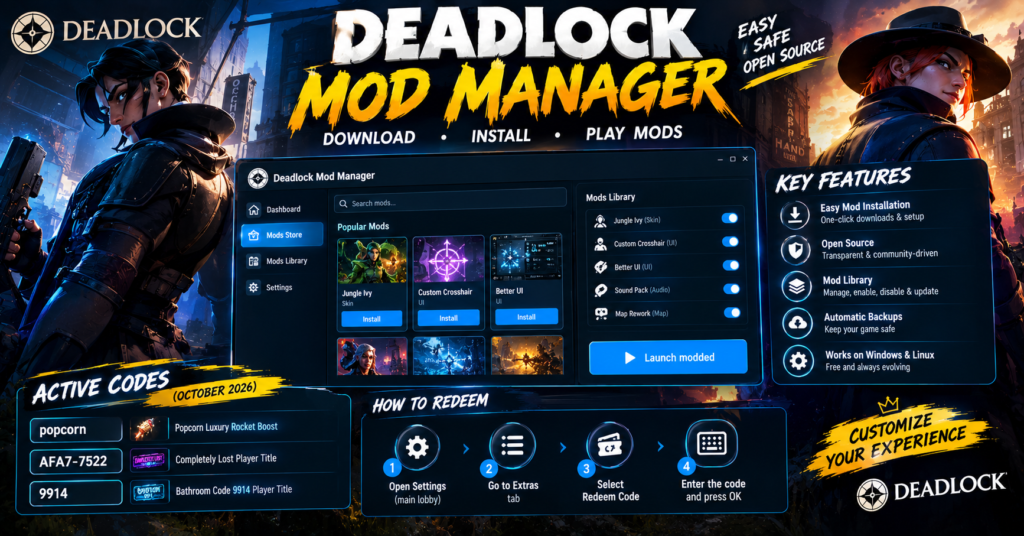

Deadlock Mod Manager is a free, open-source app for Windows and Linux that installs Deadlock mods in a few clicks. As of the latest update, you download it from deadlockmods.app, let it detect your game, pick a mod in the Mods Store, enable it in the Mods Library and press Launch modded. However, Valve does not make or endorse the app. Its own FAQ says cosmetic client-side mods are generally safe, while gameplay-changing mods may be restricted.
Summary: Deadlock Mod Manager
- What it is: a free, community-made mod manager for Deadlock on Windows and Linux.
- Where to get it: deadlockmods.app, the GitHub releases page or a package manager such as winget.
- How to use it: download a mod, enable it in the Mods Library, then press Launch modded.
- Safety: the code is open source, but the app is not affiliated with Valve, so check Valve’s mod policy yourself.
- After game updates: check for mod updates, because compatibility is not guaranteed.
What Is Deadlock Mod Manager?
Deadlock Mod Manager is a community project that lets you find, install and manage Deadlock mods without touching game files by hand. It is built with Tauri, React and TypeScript, and it is MIT licensed.
The app does one simple job under the hood. It copies .vpk files into your game’s addons folder and never patches the Deadlock executable. It also backs up your setup first, so you can restore it in one click or launch the vanilla game at any time.
| Feature | What it does |
|---|---|
| Mods Store | Browses the GameBanana catalog of mods, sounds, maps and works in progress, with hero and category filters |
| One-click installs | Downloads mods, lets you pick files or variants, and supports pause, resume and retry |
| Mods Library | Enables, disables, reorders, updates and reinstalls mods, with conflict warnings |
| Hero Skins, Crosshairs and Autoexec | Customizes your game from one place |
| Profiles | Keeps separate mod setups and lets you share a Profile ID |
| Backups | Creates and restores addons backups, with optional automatic backups |
| Mod Foundry (experimental) | Recolors a hero skin and exports it as a VPK |
How to Download Deadlock Mod Manager
Use the official sources only. Several third-party sites copy the name, so stick to these:
- Official website: deadlockmods.app. The site lists version 1.1.0 as of today and describes the installer as signed.
- GitHub releases: the project’s releases page offers the installer, plus a portable .exe that you can run without installing.
- Windows package manager: run
winget install --id=Stormix.DeadlockModManagerin a terminal. - Linux: choose from .deb, .rpm and Flatpak downloads, the AUR (
yay -S deadlock-modmanager), nixpkgs or a Gentoo overlay.
The app currently supports Windows and Linux, and it is free to use. You also need Deadlock installed through Steam, so the manager can find your game folder.
How to Install and Set Up Deadlock Mod Manager
Once the installer finishes, open the app. First-time setup takes only a minute:
- Let the manager detect your Deadlock installation.
- Check the detected path. If it is missing or wrong, browse to your game folder yourself. The usual Windows location is
C:\Program Files (x86)\Steam\steamapps\common\Deadlock. - Review any existing addons and your network preferences.
- Choose your analytics preference and read the separate match-sharing consent before you enable it.
- Finish the wizard to open the Dashboard.
You can change the game path later under Settings, then Game. Likewise, you can repeat the wizard with Reset Onboarding in Settings.
The manager only edits Deadlock’s gameinfo.gi file, which controls which content folders load, after you press Launch modded for the first time.
How to Use Deadlock Mod Manager to Install Your First Mod
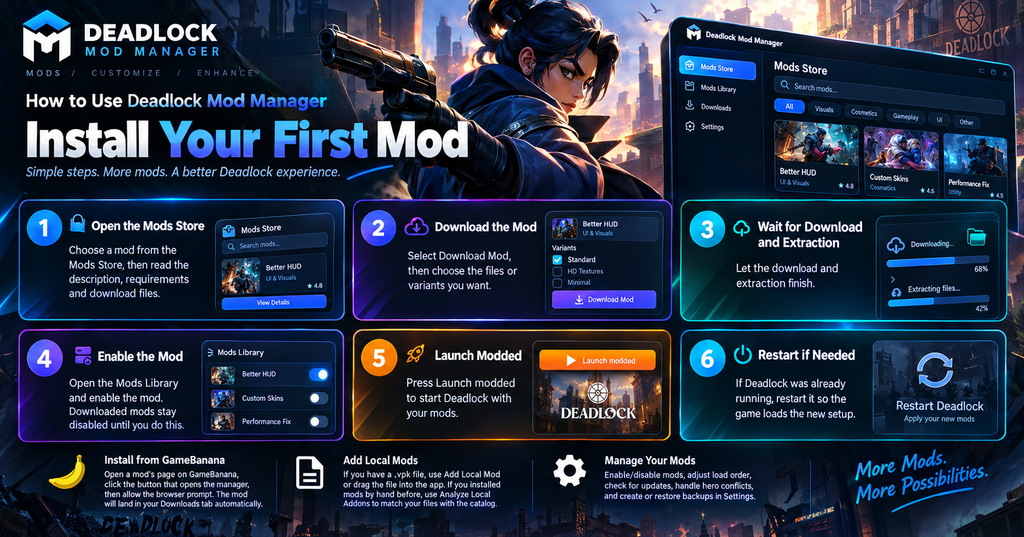
The core workflow is the same for every mod:
- Open the Mods Store and choose a mod.
- Read the description, requirements and download files.
- Select Download Mod, then choose the files or variants you want.
- Wait for the download and extraction to finish.
- Open the Mods Library and enable the mod. Downloaded mods stay disabled until you do this.
- Press Launch modded to start Deadlock with your mods.
If Deadlock was already running, restart it so the game loads the new setup.
Install from GameBanana
You can also start from a mod’s page on GameBanana. Look for the button that opens the manager, then allow the browser prompt. As a result, the mod lands in your Downloads tab without any manual file handling.
Add mods that are not on GameBanana
If you already have a .vpk file, use Add Local Mod or drag the file into the app. Moreover, if you installed mods by hand before, open the Mods Library and choose Analyze Local Addons. The app then tries to match your files with its catalog.
Manage your mods
After your first install, these tools keep your setup tidy:
- Enable or disable: toggle mods in the Mods Library without deleting them.
- Load order: choose Change Mods Order and drag entries. Load order decides which replacement wins, although conflicting mods may still fail to work together.
- Updates: use Check for updates, then review the files before the batch update starts.
- Hero conflicts: if a warning appears, choose whether to swap the existing mod or keep both.
- Backups: open Settings, then Backups, to create or restore a backup before big changes.
Is Deadlock Mod Manager Safe, and Can Mods Get You Banned?
The manager is open source, so anyone can read its code on GitHub. Its FAQ calls it safe and suggests scanning any downloaded file with VirusTotal if you want extra peace of mind.
Bans are a different question. The manager’s FAQ says Deadlock currently allows client-side modifications that do not affect balance or give unfair advantages. It adds that cosmetic mods, such as skins and UI changes, are generally safe, while gameplay mods may be restricted.
However, the project is independent and not affiliated with Valve. Therefore, check Valve’s current policy before you install anything that touches gameplay, and remember that policies can change.
Deadlock Mod Manager Not Working? Common Fixes
Most problems come from a handful of causes. Work through them in this order.
Your mods do not appear in game
First, make sure you pressed Launch modded instead of starting the game from Steam. Then confirm the mod is enabled in the Mods Library, and restart Deadlock if it was already open.
A game update broke your mods
The manager warns you while Steam updates Deadlock, so let the update finish before you launch. Afterward, open the Mods Library, check for updates and disable any mod that no longer works. Updates depend on the mod author, so the manager cannot guarantee compatibility with the latest patch.
Two mods conflict
Open Change Mods Order and move the mod you want to win higher. If that fails, disable one of the mods. Conflicts are most common when two mods replace the same hero.
Steam reset your game configuration
Steam’s Verify integrity of game files restores the original gameinfo.gi. If that happens, open Settings, then Game to validate or reset the configuration, then launch modded again.
Downloads keep failing
Check your connection, firewall and antivirus first. Then use Retry in the Downloads tab. If a download fails once, you can also delete the failed entry and try again.
The app will not start
Startup crashes usually trace back to permissions, antivirus software or missing system dependencies. On Linux, one third-party guide points to missing WebKit2GTK libraries as a common cause.
Privacy Settings Worth Checking
Most guides skip this part. The manager keeps your mod setup and preferences on your own machine, but several features contact outside services, including mod browsing, downloads, Profile ID sharing and player stats.
Two settings deserve a look under Settings, then Privacy:
- Usage Analytics: you choose this during setup, and you can change it later.
- Match Data Sharing: it is on by default. It uses your locally stored Steam login to fetch your own matches, then sends only match IDs and salts to deadlock-api. Turn it off if you would rather not share.
Mistakes to Avoid
- Downloading from random sites. Use deadlockmods.app or the GitHub releases page.
- Launching from Steam by habit. Use Launch modded, or your mods will not load.
- Skipping backups. A quick backup before a big change saves a lot of time.
- Stacking several mods for one hero. Pick one, or expect conflicts.
- Ignoring game updates. Test your mods after each patch, and disable any that break.
What Could Change Next
Deadlock gets frequent updates, and mod compatibility can shift with each one. Everything above is accurate as of October 7, 2026, but the manager’s features and Valve’s mod policy can change. Therefore, check the official docs and Valve’s current rules before you install new mods.
Conclusion
Deadlock Mod Manager is the easiest way to install Deadlock mods on Windows and Linux. Download it from the official site, let it find your game, enable your mods in the Library and press Launch modded. Because game updates can break mods, check for updates after each patch.
FAQs
Is Deadlock Mod Manager free?
Yes. It is free and open source under the MIT license.
Does Deadlock Mod Manager work on Mac?
Not at the moment. The app currently supports Windows and Linux.
Will using mods get me banned from Deadlock?
The manager’s FAQ says cosmetic client-side mods are generally safe, while gameplay mods may be restricted. However, the app is not affiliated with Valve, so check Valve’s current policy yourself.
Can I use mods I installed manually?
Yes. Open the Mods Library and choose Analyze Local Addons, or use Add Local Mod to import your files.
Where does the manager install mods?
It places mod files in your Deadlock game directory, inside the addons and profile folders. Downloaded archives stay in your local app data.
How do I remove a mod?
Open the Mods Library, choose the mod’s uninstall action and confirm. Alternatively, disable it if you want to keep the download for later.
For more updates visit: GAME SPEC