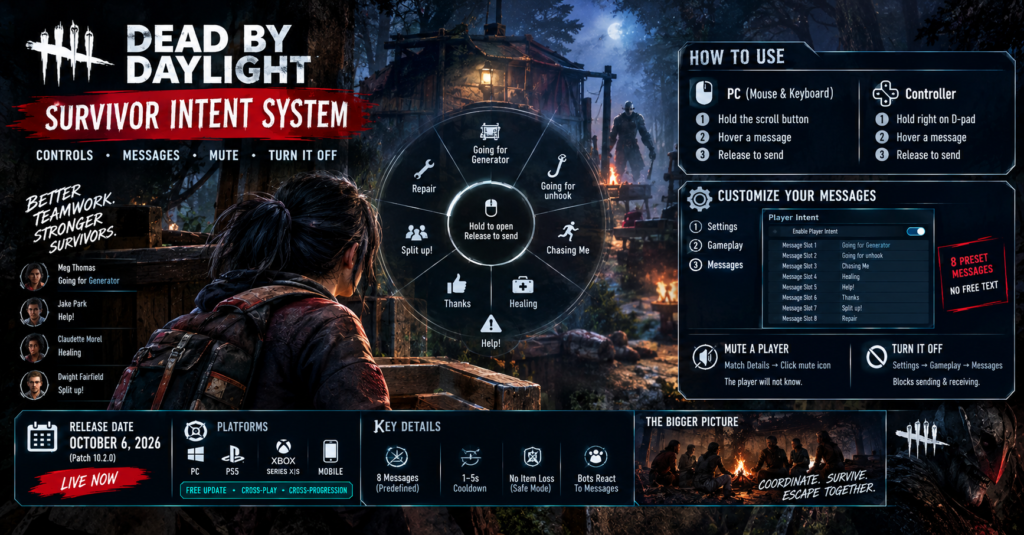

The Dead by Daylight Survivor Intent System is a message wheel that lets Survivors send preset callouts during a trial, and it went live with patch 10.2.0 on October 6, 2026. On mouse, hold the scroll button, hover a message and release. On controller, do the same with right on the D-pad. To change your messages, mute a teammate or switch the whole system off, open Settings, then Gameplay, then Messages.
Summary: Dead by Daylight Survivor Intent System
- Release: patch 10.2.0, October 6, 2026.
- Controls: hold the scroll button (mouse) or right D-pad (controller), hover, then release.
- Messages: 8 preset slots that you can customize. There is no free text.
- Mute: per player, from Match Details, and the muted player never finds out.
- Turn it off: Settings, Gameplay, Messages. Off blocks both sending and receiving.
- Cooldown: 1 second at first, rising to 5 seconds if you spam.
- Bots: they react to your messages and change their goals.
What the Survivor Intent System Is
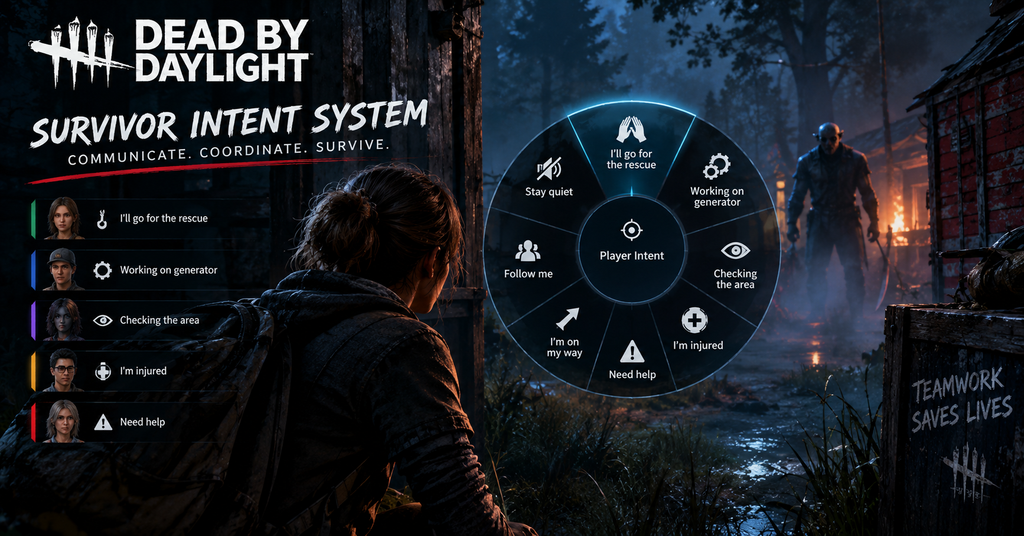
For more than ten years, solo Survivors had no way to tell teammates what they planned to do. Instead, they relied on emotes, crouching and guesswork. Behaviour Interactive finally changed that with a preset message wheel.
You open the wheel, pick one of eight phrases and release. Everyone on your team then sees the message beside your name in the Survivor list on the left side of the screen. According to Behaviour’s August developer update, the goal is to keep your view clear while you loop the Killer or hunt for an objective.
The name causes some confusion, because Behaviour uses two. The patch notes say Survivor Intent System, while the developer blog and the in-game toggle say Player Intent. Both refer to the same feature, so search for Player Intent when you look through menus.
Behaviour announced the system on August 14, 2026, tested it in the 10.2.0 public test build and shipped it on October 6. As of the latest update, the patch notes describe it as a Survivor-to-Survivor tool.
Survivor Intent Keybinds and How to Use the Wheel
The wheel works on a hold-and-release pattern, so you commit to one selection each time.
| Input | Default control |
|---|---|
| Mouse and keyboard | Hold the scroll button (middle mouse) |
| Controller | Hold right on the D-pad |
| Send a message | Hover over it, then release the input |
| Change the binding | Rebind both inputs in Settings |
Because you must hold the input, you cannot open the wheel and browse at your own pace. Therefore, learn your layout before a match starts, and your hand will find the right slot without much thought.
If your middle mouse button already does something else, move the wheel to another key. Behaviour also fixed a launch bug in which opening the wheel could cancel a held interaction. So if an old guide warns you about that problem, it no longer applies.
The 8 Messages and How to Customize Them
The wheel has eight slots, and the messages are predefined. In other words, you choose which phrases sit on your wheel, but you cannot type your own words.
Behaviour showed these defaults in a screenshot of its own settings menu:
| Slot | Default message |
|---|---|
| 1 | Going for Generator |
| 2 | Going for unhook |
| 3 | Chasing Me |
| 4 | Healing |
| 5 | Help! |
| 6 | Thanks |
| 7 | Split up! |
| 8 | Repair |
However, treat this list as the announced defaults, not a guarantee. The screenshot came from an August pre-release build, and Behaviour changed other parts of the game before launch. If your wheel looks different, trust your wheel.
Each slot is a dropdown, which means the full pool of phrases is larger than eight. As a result, the wheel works like a loadout you build. The menu also has a Restore Defaults button, so experimenting costs you nothing.
How to customize your messages
- Open Settings from the main menu.
- Select the new Gameplay tab that arrived in 10.2.0.
- Open Messages.
- Pick a phrase for each of the eight slots.
- Press Restore Defaults if you want to start over.
UI scaling also got a fix. Before launch, the Intent menu had scaling and overlap problems when your UI scale sat below 100%, and Behaviour patched that.
How to Turn Off Player Intent in DBD
If you would rather skip the feature, you can disable it completely. Behaviour added this option after players said the system is not for everyone.
- Go to Settings, then Gameplay.
- Open Messages.
- Switch off Enable Player Intent.
The switch works in both directions. When you turn it off, you stop receiving messages and you cannot send any. There is no mode where you listen but stay silent.
Your teammates can tell, though. Match Details shows a “no” icon beside any player who opted out, which stops people from sending requests that you will never see.
How to Mute a Player in Player Intent
Disabling the whole system is the heavy option. Alternatively, you can mute one teammate and keep everyone else.
- Open Match Details during the trial.
- Find the player you want to silence.
- Click the mute icon beside their name.
- Click it again to unmute them in the same match.
Muting blocks their Player Intent messages on your screen. Furthermore, the patch notes say the muted player does not receive any notice. That design avoids drama, since you still have to finish the match together.
Here is how the two options differ:
| Feature | Mute one player | Disable Player Intent |
|---|---|---|
| Where | Match Details | Settings, Gameplay, Messages |
| Blocks incoming messages | From that player only | From everyone |
| Blocks sending | No | Yes |
| Others can see it | No | Yes, with a “no” icon |
The patch notes describe muting as a match action. They do not mention a permanent block list across matches, so assume you need to mute again in the next trial.
The Anti-Spam Cooldown
Behaviour built a rate limiter to stop abuse. If you send messages too quickly, a 1-second cooldown applies. Then, if you keep spamming, the cooldown grows up to 5 seconds. After you wait, it resets to the shortest length.
Five seconds feels long during a chase, which is the point. The penalty scales with misuse, and it disappears by itself when you behave. The notes list no strikes, no permanent penalties and no report button for the wheel.
Bots Listen to Your Messages
This detail gets less attention than it deserves. Behaviour added a change between the test build and the live release: bots now listen to your Intent messages and adjust their goals accordingly.
As a result, the wheel becomes a real command tool when bots fill your trial. For example, a message about unhooking or splitting up can steer a bot instead of just informing a human.
Unfortunately, Behaviour has not said how strongly bots weigh each message, how far away they respond or which phrases they understand. Therefore, test it yourself and ignore any guide that claims exact numbers.
Tips for Solo Queue
These tips are my suggestions based on how the wheel works, not official advice.
- Load your wheel before the match. Choose the phrases you would actually use, because you have no time to browse mid-chase.
- Prioritize objective calls. Duplicate actions, like two Survivors heading to one hook, lose more games than most mistakes.
- Send messages when you are safe. The hold-and-release input takes attention, so avoid it in the middle of a tight loop.
- Mute early. If someone spams the wheel, mute them right away instead of waiting for the problem to grow.
- Test the bots. Try a callout in a bot-filled trial and watch how they react.
Common Mistakes
- Looking in the old settings tabs. The Messages section lives in the new Gameplay tab.
- Expecting free text. The wheel only sends preset phrases.
- Assuming mute alerts the other player. It does not.
- Trusting default lists without checking. The screenshot may not match the live build.
- Forgetting the rebind option. Move the wheel if middle mouse conflicts with your setup.
- Searching for the wrong name. Look for Player Intent in menus, even though patch notes say Survivor Intent.
Conclusion
The Dead by Daylight Survivor Intent System gives solo Survivors a simple way to coordinate without voice chat. Learn the hold-and-release input, build a wheel that suits your play, and mute anyone who abuses it. If you dislike the feature, switch it off in Gameplay, Messages. Everything here is accurate as of October 11, 2026, and Behaviour may adjust the system in future patches.
FAQs
What patch added the Survivor Intent System?
Patch 10.2.0 added it on October 6, 2026.
How do I open the Player Intent wheel?
Hold the scroll button on mouse or right on the controller D-pad, hover a message and release.
Can I type my own messages?
No. The messages are predefined, but you choose which eight appear on your wheel.
How do I turn off Player Intent?
Go to Settings, Gameplay, Messages and switch off Enable Player Intent. You will then stop sending and receiving messages.
How do I mute someone in Player Intent?
Open Match Details during a trial and use the mute icon beside the player. They will not know.
Can Killers see the messages?
The patch notes describe messages as shown to Survivors. Behaviour has not said anything about Killers receiving them.
For more updates visit: GAME SPEC