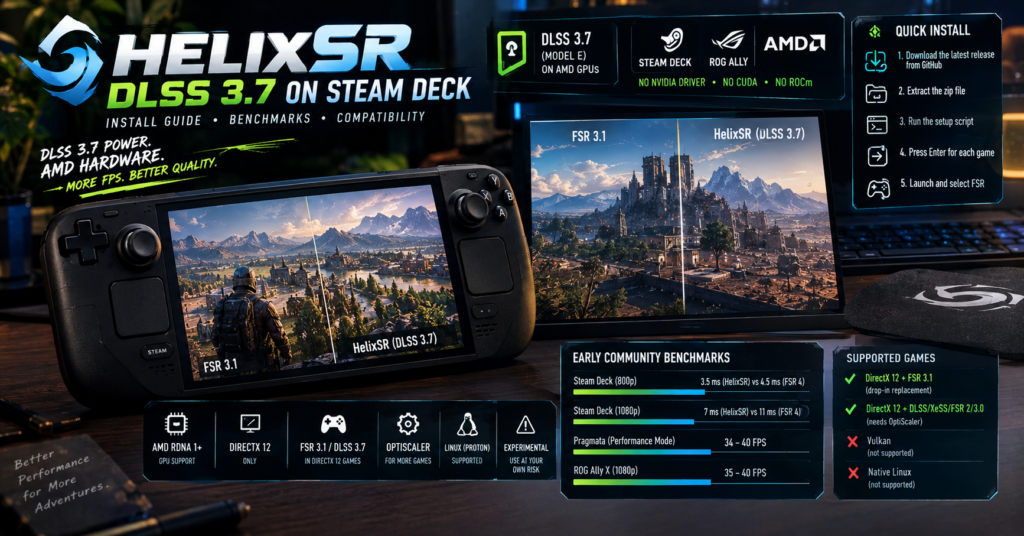

HelixSR is a free community mod by lonewolf0622 that runs Nvidia’s DLSS 3.7 upscaling model on AMD hardware like the Steam Deck and ROG Ally. It replaces FSR 3.1 in DirectX 12 games, and you install it by running the setup script from the GitHub release. However, the project is experimental, so expect crashes in some games. Early community tests show lower upscaling cost than FSR 4, but broad FSR 3.1 comparisons are still missing.
Summary: HelixSR DLSS 3.7
- What it is: a mod that runs DLSS 3.7 (Model E) on AMD GPUs through DirectX 12 compute shaders.
- Developer: lonewolf0622, on GitHub.
- Works with: DirectX 12 games, directly for FSR 3.1 titles and through OptiScaler for others.
- Hardware: AMD RDNA 1 or newer, including Steam Deck and ROG Ally.
- Install: extract the zip, run the setup script and press Enter for each game.
- Not supported: Vulkan games.
- Status: experimental, with limited testing.
What HelixSR Does
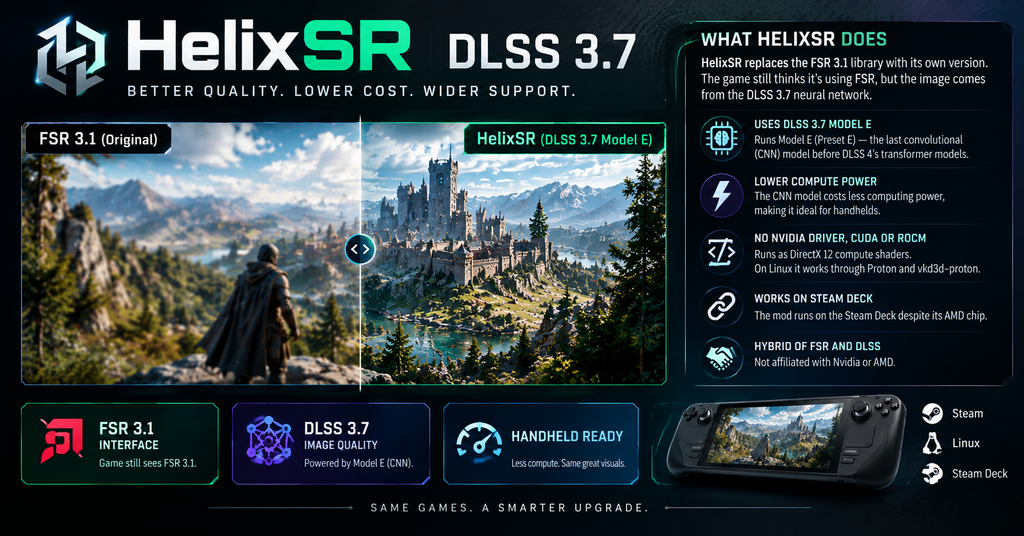
Games that support FSR 3.1 talk to a small FidelityFX library. HelixSR swaps that library for its own version. The game still believes it uses FSR, but the picture comes from the DLSS 3.7 neural network.
Specifically, HelixSR runs Model E, also called Preset E. Nvidia introduced it with DLSS 3.7 as the last convolutional (CNN) model before DLSS 4 moved to transformer models. The older CNN model costs less computing power, which suits handhelds better.
The mod needs no Nvidia driver, CUDA or ROCm. Instead, it runs the network as ordinary DirectX 12 compute shaders, and on Linux it works through Proton and vkd3d-proton. That is why the Steam Deck can use it despite its AMD chip.
The developer describes the mod as a hybrid of FSR and DLSS. As of the latest update, HelixSR is not affiliated with Nvidia or AMD.
HelixSR DLSS 3.7 vs FSR Performance Benchmarks
Testing is still thin, so treat these figures as early community results and not as lab benchmarks.
| Test | Result |
|---|---|
| Steam Deck, 800p upscale cost | About 3.5 ms for HelixSR vs about 4.5 ms for FSR 4 |
| Steam Deck, 1080p upscale cost | About 7 ms for HelixSR vs about 11 ms for FSR 4 |
| Steam Deck, Pragmata, Performance mode | 34 to 40 FPS |
| ROG Ally X, CONTROL Resonant, 1080p | 35 to 40 FPS |
The first two rows come from one ResetEra user, measured with the Steam Deck GPU at 1400 MHz. The last two come from the YouTuber BlackHeart909. In addition, an NJ Tech video found that DLSS 3.7 through HelixSR delivered higher FPS than FSR 4.1.1, with results closer to the older FSR 3.1.5 but better image quality.
Pay attention to what those comparisons measure. Most compare HelixSR to FSR 4, not to the FSR 3.1 that the Deck actually uses. Club386 notes that the footage it saw does not show clear FSR 3.1 vs DLSS 3.7 comparisons, although it describes a visible quality improvement over FSR 3.1’s grainy look. Therefore, a fair FSR 3.1 benchmark does not exist yet.
For context, Club386 also says official FSR 4 support for RDNA 2 GPUs is not expected until 2027. Until then, HelixSR is one of the few ways to get a neural upscaler on those chips.
Which Hardware and Games Work
The mod targets AMD RDNA 1 or newer GPUs, with Radeon Vega listed as experimental. Reports focus on the Steam Deck, Steam Deck OLED and ROG Ally X.
Here is how game support breaks down:
| Game type | Support |
|---|---|
| DirectX 12 game with FSR 3.1 | Works as a drop-in replacement |
| DirectX 12 game with DLSS, XeSS or FSR 2 and 3.0 | Needs OptiScaler |
| Vulkan game | Not supported |
| Native Linux game | Not supported |
OptiScaler can pass a game’s upscaler calls to an FSR 3.1 DLL, so HelixSR can work in DirectX 12 games that lack a separate FSR 3.1 library. OptiScaler lists HelixSR as an FSR option once you set it up. The developer’s notes mention an experimental route that lets a game’s own DLSS menu run HelixSR without OptiScaler, but they warn it was tested in very few games, on Linux only, and may crash.
For general mod safety habits, see our Deadlock Mod Manager guide, which covers backups and modded launches for another game.
How to Install HelixSR on Steam Deck
The 1.8 releases simplified the process into one setup script. Follow these steps:
- Switch your Steam Deck to Desktop Mode.
- Download the latest HelixSR zip from the official GitHub releases page (lonewolf0622/HelixSR).
- Extract the zip to a new folder.
- Open a terminal in that folder and run
helixsr-setup.sh. - Press Enter when the tool lists a game, and answer yes for each game you want to patch.
- Launch the game and choose FSR as the upscaler in its graphics menu.
The setup finds games from Steam, Epic, Xbox and Game Pass, GOG, Heroic and Lutris. On Linux it needs Python 3 with numpy. If your system lacks them, the script offers to install them, or it downloads a portable Python on read-only systems like SteamOS and Bazzite. Meanwhile, the shader compiler runs through Proton, so make sure a Proton version is installed.
The script downloads Nvidia’s official DLSS DLL and builds the network on your device. Because the built files contain Nvidia’s network, the developer says not to share or upload them.
Updating, switching and uninstalling
- Update: extract the new version into a new folder, run its setup and answer yes for your games.
- Switch modes: run the setup again and pick f or o for a game.
- Uninstall: delete HelixSR’s file and helixsr.ini, then rename the original DLL back. Alternatively, use the setup’s uninstall option.
Decky plugins
Several independent Decky Loader plugins now wrap the setup so you can install from Gaming Mode. Examples include projects from ks692, Blackheart909 and PeroTuncay. They are third-party, they are not made by the HelixSR developer, and they need Decky’s developer mode to install from a ZIP. Therefore, check each plugin’s page before you trust it.
How to Install HelixSR on ROG Ally
On Windows, you run helixsr-setup.bat instead of the Linux script, then press Enter for each game. The same zip works, and the script also finds Epic, Xbox, Game Pass and GOG installs.
However, a caveat applies. The release notes say the Windows setup, which uses PowerShell, has been tested only through Proton so far, and the developer asks for reports. The ROG Ally X results above come from a community tester, not from the developer. So start with one game and keep a backup of the original DLL.
HelixSR and OptiScaler Compatibility
OptiScaler widens the list of supported games. The basic idea works like this:
- Install OptiScaler for the game by following its own documentation.
- Point OptiScaler’s settings at HelixSR’s DLLs, and set the upscaler to FSR 3.1.
- Under Proton, remember that the Z drive is the Linux root, so paths start with Z:.
Since the setup now handles much of this, you usually do not need to edit files by hand in the 1.8 releases. Still, a missing OptiScaler.ini no longer stops the setup, because 1.8.1 creates a new one.
Cyberpunk 2077 and Starfield Settings
I could not find tested reports or official settings for Cyberpunk 2077 or Starfield with HelixSR. As a result, I will not give you numbers that I cannot back up.
Here is a safe method instead:
- Check the API. HelixSR needs DirectX 12, so confirm each game runs in that mode.
- Look for FSR 3.1. If a game offers FSR 3.1, the setup can swap it directly.
- Test one change at a time. Start with Quality mode, then try Balanced or Performance.
- Keep sharpening off at first. HelixSR leaves sharpening off by default, like DLSS, and the 1.8 release adds optional sharpening in helixsr.ini.
- Compare against FSR. Switch back with the setup if the game looks worse or stutters.
Risks and Cautions
- Experimental software. The developer says it may not work or may crash a game.
- Online games. Replacing DLL files can trigger anti-cheat in multiplayer titles. That is my caution, not an official statement, so avoid HelixSR in online games with anti-cheat.
- Game updates. Updates can overwrite the patched files, so run the setup again afterward.
- Trust. Download only from the official GitHub repository, not from reuploaded zips.
If you want another example of a Steam Deck rating and its limits, our Deep Dish Dungeon guide explains what Verified does and does not promise.
Common Mistakes
- Expecting Vulkan support. HelixSR supports DirectX 12 only.
- Assuming FSR 4 comparisons mean FSR 3.1 gains. The data compares different technologies.
- Skipping the backup. Always keep the original DLL.
- Sharing built files. They contain Nvidia’s network.
- Using it in anti-cheat games. The risk is not worth it.
Conclusion
HelixSR gives Steam Deck and ROG Ally owners a rare chance to try DLSS 3.7 on AMD hardware, and early reports look promising. Install it from the official GitHub release, test one DirectX 12 game, and keep a backup. Meanwhile, wait for broader FSR 3.1 benchmarks before you judge the image quality. Everything here is accurate as of October 14, 2026, and the project updates quickly.
FAQs
What is HelixSR?
It is a community mod that runs Nvidia’s DLSS 3.7 (Model E) upscaler on AMD GPUs.
Does HelixSR work on Steam Deck?
Yes. It works through Proton, and several community tests use a Steam Deck.
Does HelixSR work on ROG Ally?
Community tests report it on the ROG Ally X. However, the developer says the Windows setup was tested only through Proton so far.
Does HelixSR support Vulkan games?
No. It supports DirectX 12 only.
Is HelixSR better than FSR 3.1?
Early reports describe better image quality, but no thorough FSR 3.1 benchmark exists yet.
Is HelixSR safe to use?
It is experimental and can crash games. Avoid it in online games with anti-cheat.
For more updates visit: GAME SPEC