
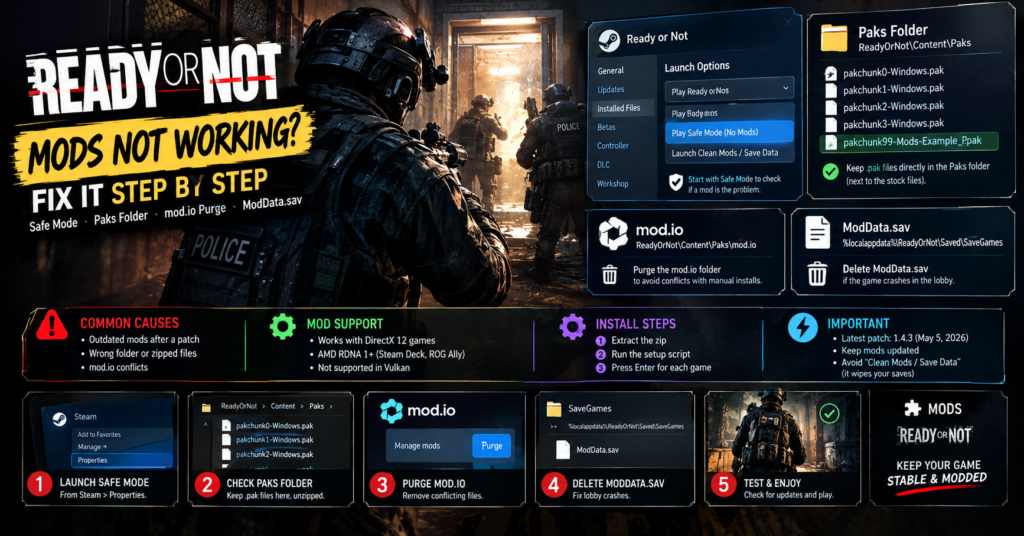

When Ready or Not mods stop working, start the game in Safe Mode with no mods from the Steam launch options. Then check that your .pak files sit directly in the Paks folder, update or remove outdated mods, and purge the mod.io folder. If the game crashes when you enter the lobby, delete ModData.sav in your SaveGames folder. However, avoid the “clean mods and save data” option unless nothing else works, because it also wipes your save data.
Summary: Ready or Not mods not working
- First step: launch Play Safe Mode (No Mods) from the Steam Properties menu.
- Mod folder:
ReadyOrNot\Content\Paks, next to the stock pakchunk files.- Most common causes: outdated mods after a patch, wrong folder, mod.io conflicts.
- Lobby crash: delete
ModData.savin%localappdata%\ReadyOrNot\Saved\SaveGames.- Last resort: the Clean Mods / Save Data option, which also purges saves.
- Latest patch found: 1.4.3 on May 5, 2026. Mods may need updates after any patch.
Why Ready or Not Mods Break
Three problems cause most failures. First, game patches change files that mods depend on. VOID Interactive says that after an update, mods built on old files will likely need their own update. Second, installs go into the wrong place or never finish deploying. Third, mod.io, the in-game mod menu, can conflict with manual or Vortex installs.
The symptoms differ, so it helps to match yours to the likely cause:
| Symptom | Likely cause |
|---|---|
| Mods do not appear at all | Wrong folder, zipped files or Vortex not deployed |
| “Corrupt data found” or serialization error | Outdated or broken mod |
| Crash when entering the lobby | Removed item or weapon mod still equipped |
| Game says modded after you removed everything | Leftover files in mod.io or local Paks folders |
| Kicked with a Pak Checksum Mismatch | Mod files differ from the host’s |
Step 1: Launch Safe Mode (No Mods)
Safe Mode is your quickest test. In Steam, right-click Ready or Not, choose Properties, and look for the safe mode options. The prompt may also pop up the first time you launch the game, after a major patch or after a reinstall.
There are two choices:
- Play Safe Mode (No Mods): loads the game without your active mods.
- Launch Clean Mods / Save Data: purges all mods and save data.
If the game runs in Safe Mode, a mod causes your problem, and you can fix it without losing anything. Therefore, use the second option only as a last resort. The Nexus guide recommends deleting mods by hand to keep your saves.
Step 2: Check Your Paks Folder (Manual Install Guide)
For Nexus Mods downloads, the correct location is:
SteamLibrary\steamapps\common\Ready Or Not\ReadyOrNot\Content\Paks\
Three rules apply:
- Unzip first. Mods must be extracted before you place them in the folder.
- Use .pak files. Extracted files must end in .pak. Turn on file extensions in Windows to check.
- Place them beside the stock files. Base game archives start with
pakchunk0-Windows.pak, and the stock files are numbered pakchunk0 through pakchunk24.
Anything without that stock numbering is a mod. Most mods follow a name like Pakchunk99-Mods-*_P.pak. Also, folders such as ~mods (Vortex’s default) and mod.io (the in-game menu’s folder) hold active mod files.
If you want another example of mod management habits, our Deadlock Mod Manager guide covers backups and clean installs for a different game.
If you use Vortex
Open the Mods tab, click the folder icon and choose Open Game Mods Folder. Check that files really sit in that directory. If they are missing, click Deploy Mods and accept any elevation prompt in the top-right corner. Otherwise, Vortex downloads the mods but never installs them.
Step 3: Update or Remove Outdated Mods
Outdated mods are the top cause of corrupt data errors. Community threads tie the “corrupt data found, please verify your installation” message and serialization errors to old or broken mods, and one older thread also blames a leftover pakchunk20 file.
The newest game patch I found is version 1.4.3 from May 5, 2026, which focused on authentication and achievement bugs. So check every mod’s page for an update date that matches or follows your game version. Then update, replace or remove anything that looks stale.
Also watch for conflicts:
- Custom maps: map .pak files often overwrite global AI settings, so they can break AI mods.
- Gameplay overrides: mods that change suspect count, trap count, player health or SWAT health can override each other.
Step 4: Purge the mod.io Folder
The in-game mod.io menu is convenient, but it causes many problems. Its files can conflict with manual or Vortex installs, and they can reinstall themselves after you unsubscribe.
To clean it:
- Open the mod.io folder inside the Paks directory.
- Look for numbered subfolders.
- Delete the contents of the mod.io folder.
- Log out of mod.io in the game.
- Restart Ready or Not and test again.
Older community guides add two checks for stubborn cases. They say to look in %localappdata%\ReadyOrNot\Saved\Paks for stray pakchunk99 files, and some players fixed a “modded” label that would not go away by clearing that folder. Treat those as older reports, but they cost little to check.
For in-game mod menu issues, the Nexus guide’s advice is blunt: avoid mod.io whenever you can.
Step 5: Fix Crashes in the Lobby with ModData.sav
This crash has a specific cause. If you uninstall an item or weapon mod while that item stays equipped in your loadout, the save file can break.
Try these fixes in order:
- Reinstall the removed mod. Then unequip its items in-game and test again.
- Open your SaveGames folder. Press Win + R and enter
%localappdata%/ReadyOrNot/Saved/SaveGames. - Delete ModData.sav. This clears modded loadout data without wiping your general progress.
- Back up the folder, then go further if needed. If crashes continue, remove loadout state files such as
MetaGameProfile.sav.
Make the backup before step 4, because those files hold more of your profile.
Step 6: Verify Game Files After Patches
If problems start right after an update, verify your files through Steam. Right-click the game, open Properties, go to Installed Files and choose Verify integrity of game files. Verifying restores damaged stock files, although it does not remove mod files you added yourself.
Step 7: Isolate the Broken Mod
When nothing above works, test one mod at a time:
- Remove all mods from the Paks folder.
- Add them back one by one.
- Start the game between each addition.
- Note which mod breaks it.
If a mod works alone but fails with others, you have a cross-mod conflict. In that case, choose which one you need more.
Common Error Messages
| Message | What to try |
|---|---|
| Corrupt data found, please verify your installation | Update or remove outdated mods, then verify files |
| Serialization error | Remove broken mods and check for a leftover pakchunk20 file |
| Pak Checksum Mismatch | Match the host’s mods, or purge the mod.io folder |
| Mod io not initialized | Players report that deleting the mod.io folder in AppData helps temporarily, so use manual installs |
The crash reporter also offers a delete mod data option in some community guides. If you try it, pick only that choice, and not the option that clears everything.
Multiplayer Mod Problems
When you join a friend, the host’s mods must match yours. The kick message tells you the server requires the same mods. So compare your Paks folders with the host’s, and remove any extras.
Tips to Prevent Mod Problems
- Back up first. Copy your Paks and SaveGames folders before you change anything.
- Mod manually. The Nexus guide favors manual installs over mod.io.
- Unequip before removing. Clear modded items from your loadout first.
- Check dates. Compare each mod’s update date to the latest game patch.
- Use the VOID resources. VOID Interactive links modding update tips on its community resources page.
Common Mistakes
- Leaving mods zipped. The game cannot read them.
- Using Clean Mods / Save Data too early. It also purges saves.
- Mixing mod.io and manual installs. They conflict.
- Uninstalling equipped mods. That can brick your loadout save.
- Ignoring Vortex deploys. Mods stay uninstalled until you deploy.
Conclusion
Start with Safe Mode, then work through the Paks folder, outdated mods, mod.io and ModData.sav in that order. Most Ready or Not mod failures trace back to an old mod, a wrong folder or a mod.io conflict. Everything here is accurate as of October 14, 2026, but a new patch can break mods again, so recheck your versions after each update.
FAQs
Why are my Ready or Not mods not working?
The usual causes are outdated mods after a patch, files in the wrong folder or a mod.io conflict.
Where do I put Ready or Not mods?
Put extracted .pak files in ReadyOrNot\Content\Paks, beside the stock pakchunk files.
How do I launch Ready or Not without mods?
Use Play Safe Mode (No Mods) from the Steam Properties menu.
How do I fix the lobby crash after removing a mod?
Reinstall the mod, unequip its items, or delete ModData.sav in your SaveGames folder.
Does Clean Mods / Save Data delete my progress?
Yes. It purges mods and save data, so use it as a last resort.
Should I use mod.io or Nexus Mods?
The Nexus troubleshooting guide recommends avoiding mod.io when you can and installing manually.
For more updates visit: GAME SPEC



Pingback: Cyberpunk 2077 Glamdoc Locations Update 2.5 Guide